




25 min read
Mapping Quip formulas
How to map common Quip formulas to Superhuman Docs, and when you don’t need to write one at all.

You'll learn how to:
- Think about formulas in Superhuman Docs
- Translate Quip formulas
- Avoid common spreadsheet pitfalls

You'll use:
- Summarize table
- Superhuman Docs formulas
- Relations
One thing to know upfront
You can often get pretty far without writing any formulas. Features like summarize table and relations handle many common use cases for you. When you do reach for formulas, Superhuman Docs has a powerful formula language that can handle everything you were doing in Quip and more. If you want a deeper introduction to Superhuman Docs' formula language, you may find these resources helpful:- Intro to Superhuman Docs' formula syntax
- Writing a formula in Superhuman Docs
- Formulas 101: A comprehensive introduction to working with data in Superhuman Docs
How formulas work in Quip and Superhuman Docs
In Quip, formulas live in individual cells. A formula is written for a specific cell and references other cells or ranges of cells in a spreadsheet. Formulas in spreadsheets are often copied or dragged to apply the same calculations to multiple rows. Even when the formula looks identical across rows, each row is tied to a specific cell. For example, you might average a set of cells like this:
Average(A1:A5) That formula is tied to a particular column and a fixed range of rows.
Average([Project].[Budget])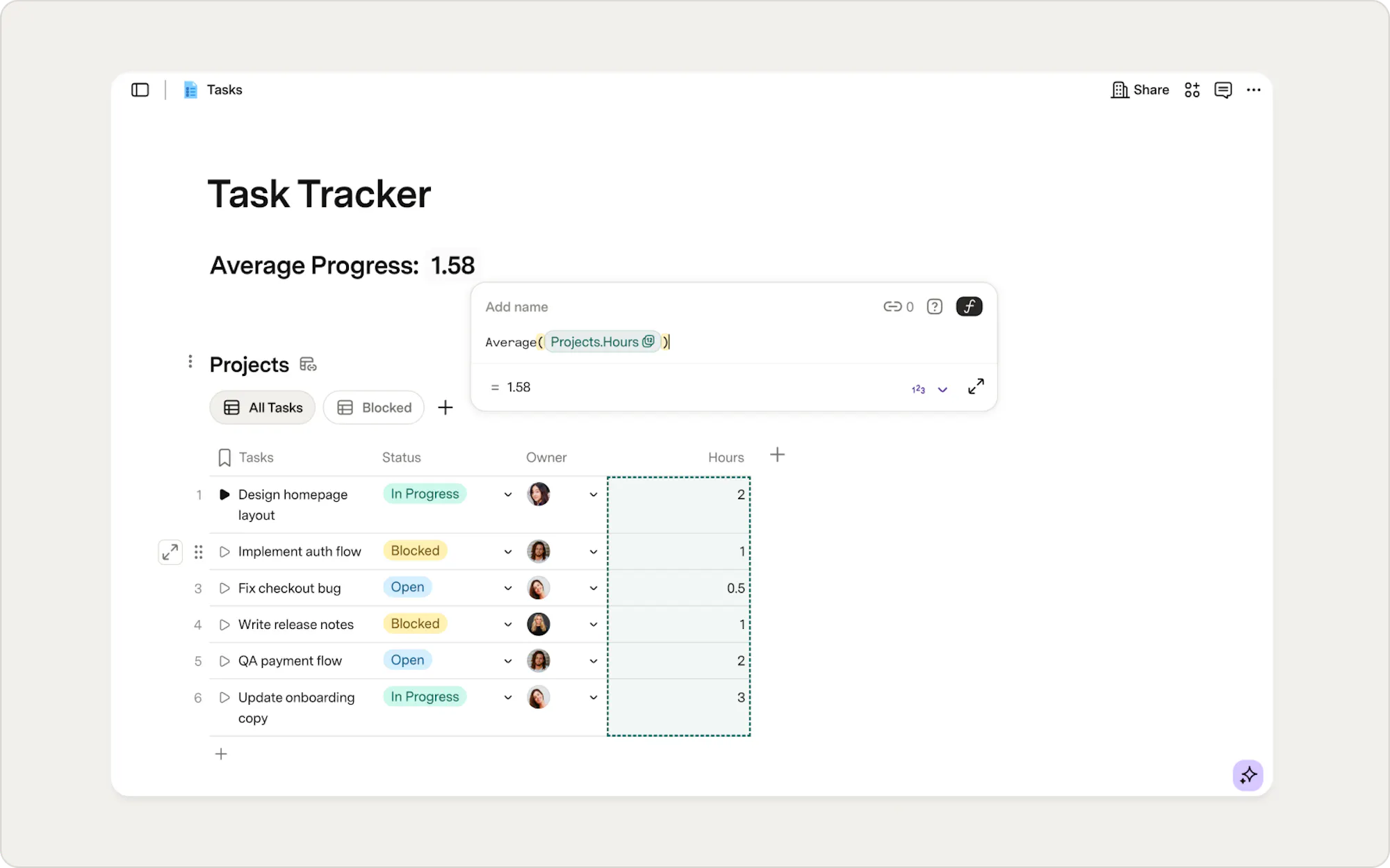
Writing formulas in Superhuman Docs
There are two common places to write formulas:- On the canvas
- In a table column
Writing a formula on the canvas
Canvas formulas are useful when you want to display a calculated value outside of a table, for example, a metric, summary, status message, or dashboard number. Unlike column formulas, which calculate a value for each row, canvas formulas calculate a single value that represents the table as a whole. You might use a canvas formula to:- Show the total budget across all projects.
- Display the number of open tasks.
- Calculate the average progress across initiatives.
To write a canvas formula:
- Type "/formula" and select Formula.
- Enter your formula.
Writing a formula in a table column
Column formulas are useful when each row in that column needs its own calculated value. To create a column formula:
- Click in the top right of the column.
- Select Column type.
- Choose Formula.
- Enter your formula.
- Or type "=" in the column's cell.
+, -, *, and /. The difference is that this rule now applies to the entire column; there is no need to drag the formula down. If you need a one-off calculation that doesn't apply to every row, that's usually better suited as a canvas formula above the table. Learn more about how to write formulas in Superhuman Docs. Common Quip formulas in Superhuman Docs
Quip formulas translate to Superhuman Docs in different ways. Below are common Quip formulas and how they translate to Superhuman Docs.Aggregations
Aggregation formulas are used to calculate totals, averages, or counts across multiple rows.Summarize table
Summarize table is one way to work with aggregated data in Superhuman Docs, and it is great for quick overviews and dashboards that need to stay in sync as your table changes. Summarize table creates the underlying formula, so you don’t have to write one. If you need to view or edit the underlying formula, you simply right-click the value and choose the formula builder button on the top right. Instead of placing sums, averages, or counts inside a table, you surface them on the canvas, where they’re easier to see and work with in your doc.How to use summarize table to create a sum, count, or average on the canvas
- On the canvas, type “/summarize” and choose Summarize table.
- Select the table you want to summarize.
- Choose the column you would like to summarize.
- Choose how you want to summarize (sum, count, average, etc.).
- Adjust how the result is displayed.

Base-table summaries include all rows
If you summarize the base table, the result includes every row in that table. If you want a filtered total, create a view, apply the filters, and then add the summary from that view.
How to use summarize table in a column to create a sum, count, or average
- Right-click the column in the table you want to summarize.
- Select Summarize.
- Choose how you want to summarize the column (sum, count, average, etc.).
- Choose whether to show the result at the bottom of the table or on the canvas.
A quick note on reading formulas
In Superhuman Docs, formulas reference named objects, like tables, columns, or
thisRow, instead of cell addresses such as A1 or B5. These names appear in square brackets and show up as clickable formula chips in the formula editor. Each chip includes an icon that indicates the type of data you are working with. Sum
You’re most likely familiar with Sum as a way to add values together. In spreadsheets, this might mean summing a range of rows or adding values across columns in a single row. In Quip:SUM() In Superhuman Docs: Sum() You’re still adding values together in the same way. Summing values on the canvas with a formula If you prefer to write the calculation yourself, you can use a canvas formula like this:
[Projects].[Budget].Sum() It produces the same results as summarize table, just written explicitly. 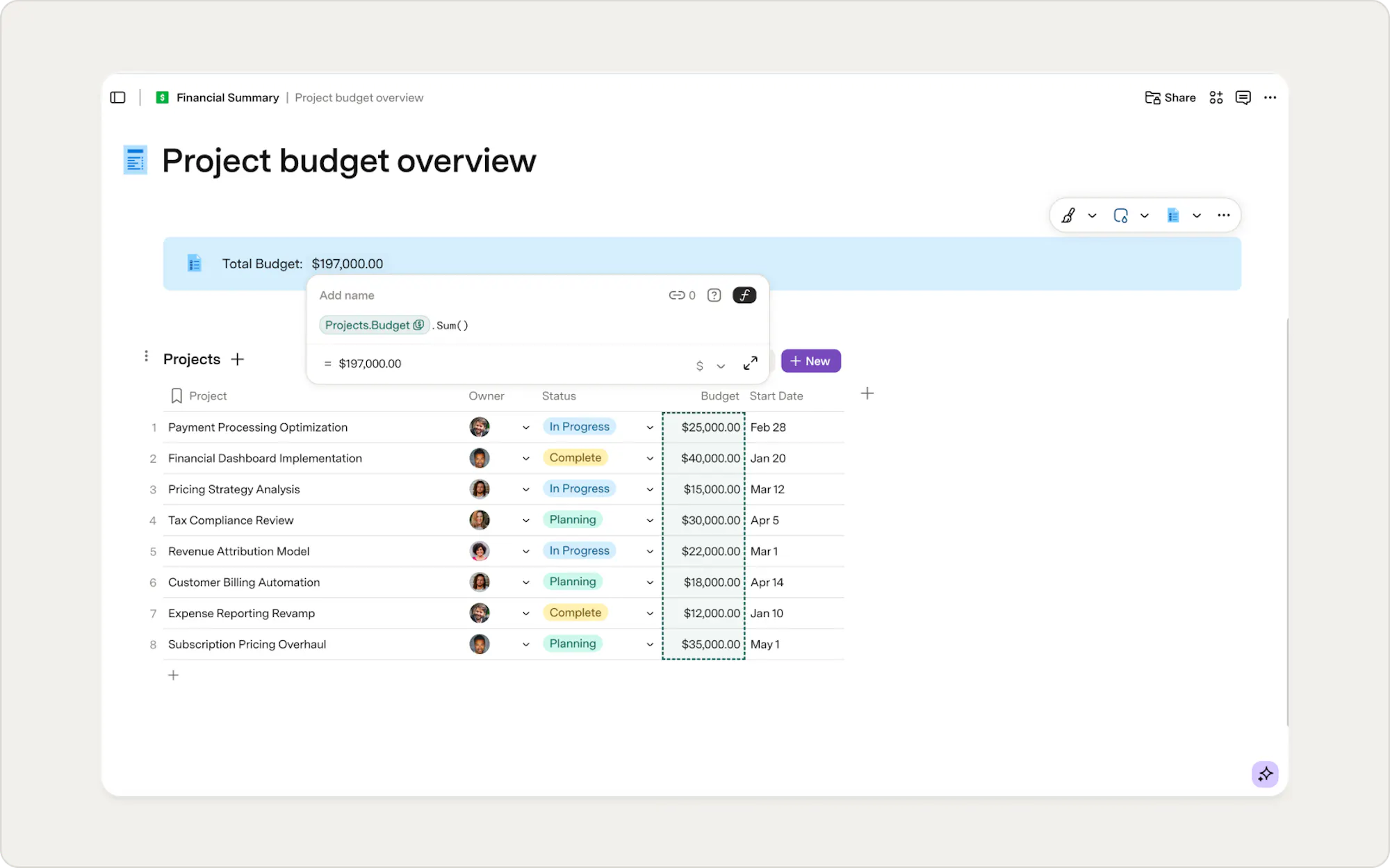
When the sum belongs to each individual row, you can use a column formula. To reference a value from the current row, you use
thisRow. It simply means you’re using the values from the row currently being calculated. For example, this formula adds up several cost fields for the current row: Sum([thisRow].[Labor],[thisRow].[Materials],[thisRow].[Misc]) Notice that Sum() wraps the values at the front rather than chaining at the end. That’s because you’re passing it a list of separate arguments, multiple individual values from the same row, rather than calling it on a single column of data.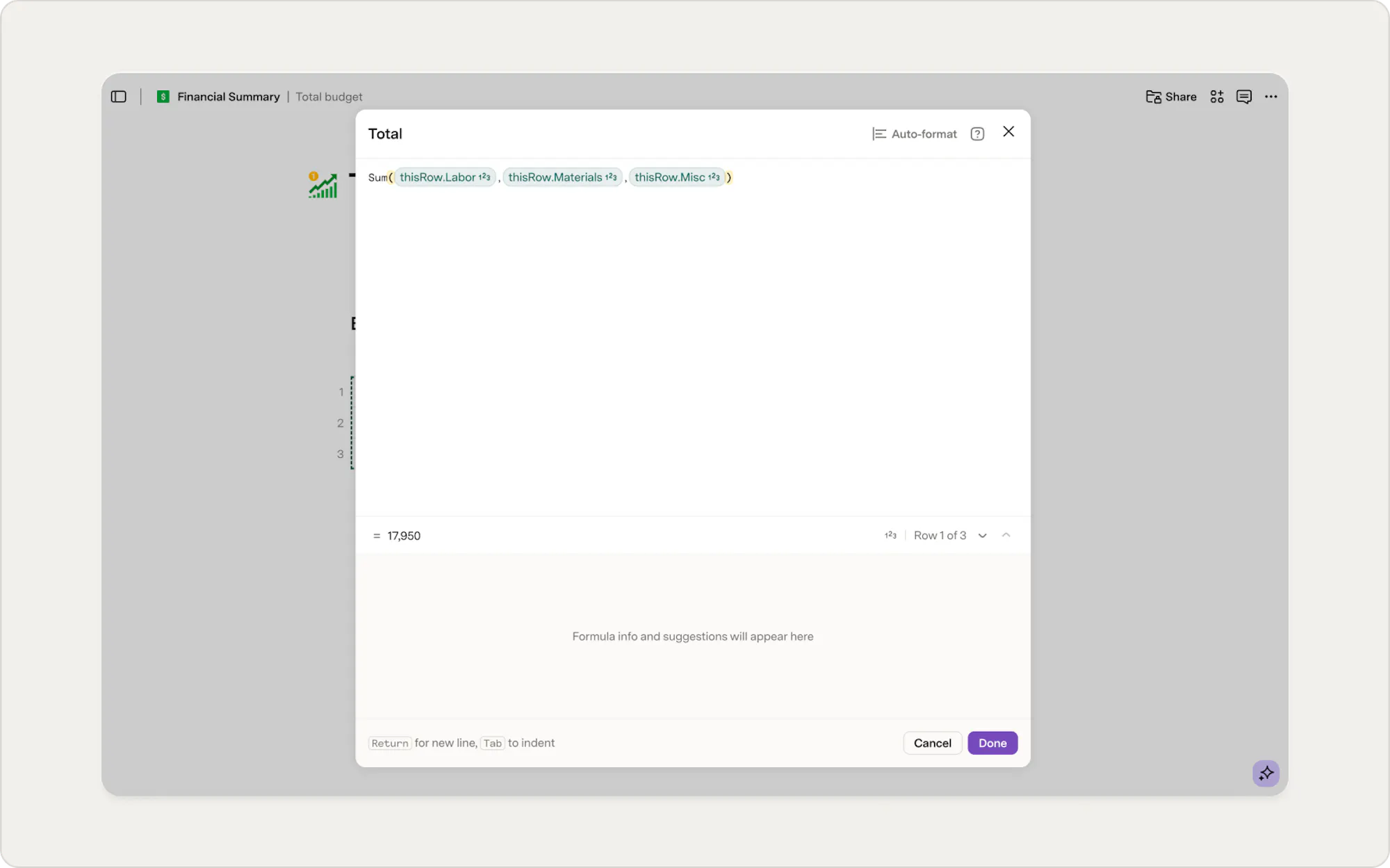
Sum() chains at the end (as in [Projects].[Budget].Sum()), it’s operating on all the values in one column. Here, you need Sum() as a wrapper because you’re combining several different fields from the current row into a single calculation.Count
When you want to know how many items you’re working with, like tasks, projects, or rows in a table, Count is what you should reach for. In Quip:COUNT() In Superhuman Docs: Count() Counting values on the canvas with a formula If you’re used to writing
COUNT() in Quip, you can write the equivalent directly on the canvas in Superhuman Docs. [Projects].[Tasks].Count() 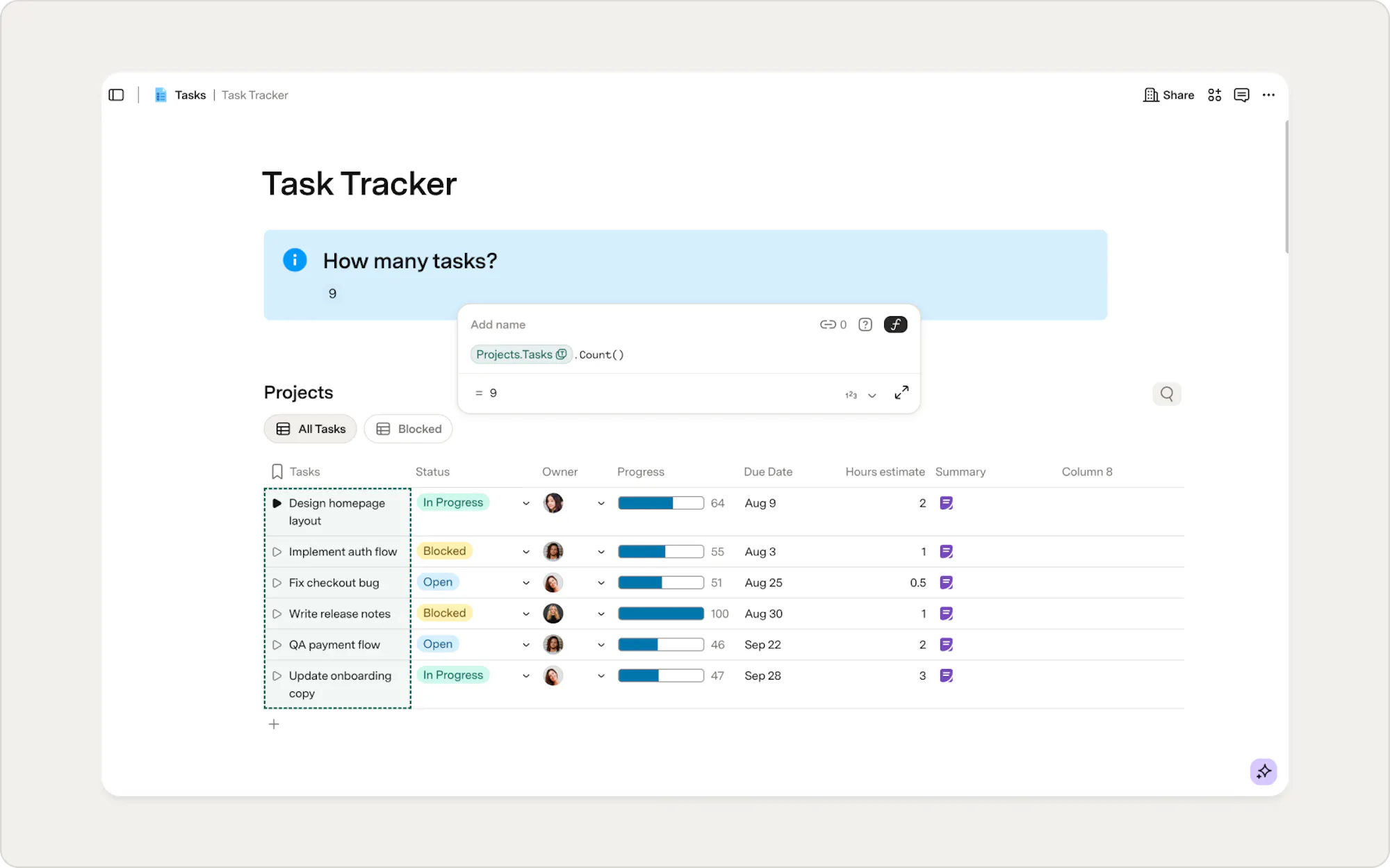
Counting related items per row using a column formula Sometimes the count belongs to each individual row, such as the number of subtasks associated with a project. For example:
[thisRow].[Subitems].Count() In this example, the same rule applies to every row, but each row will return a different result based on its related items.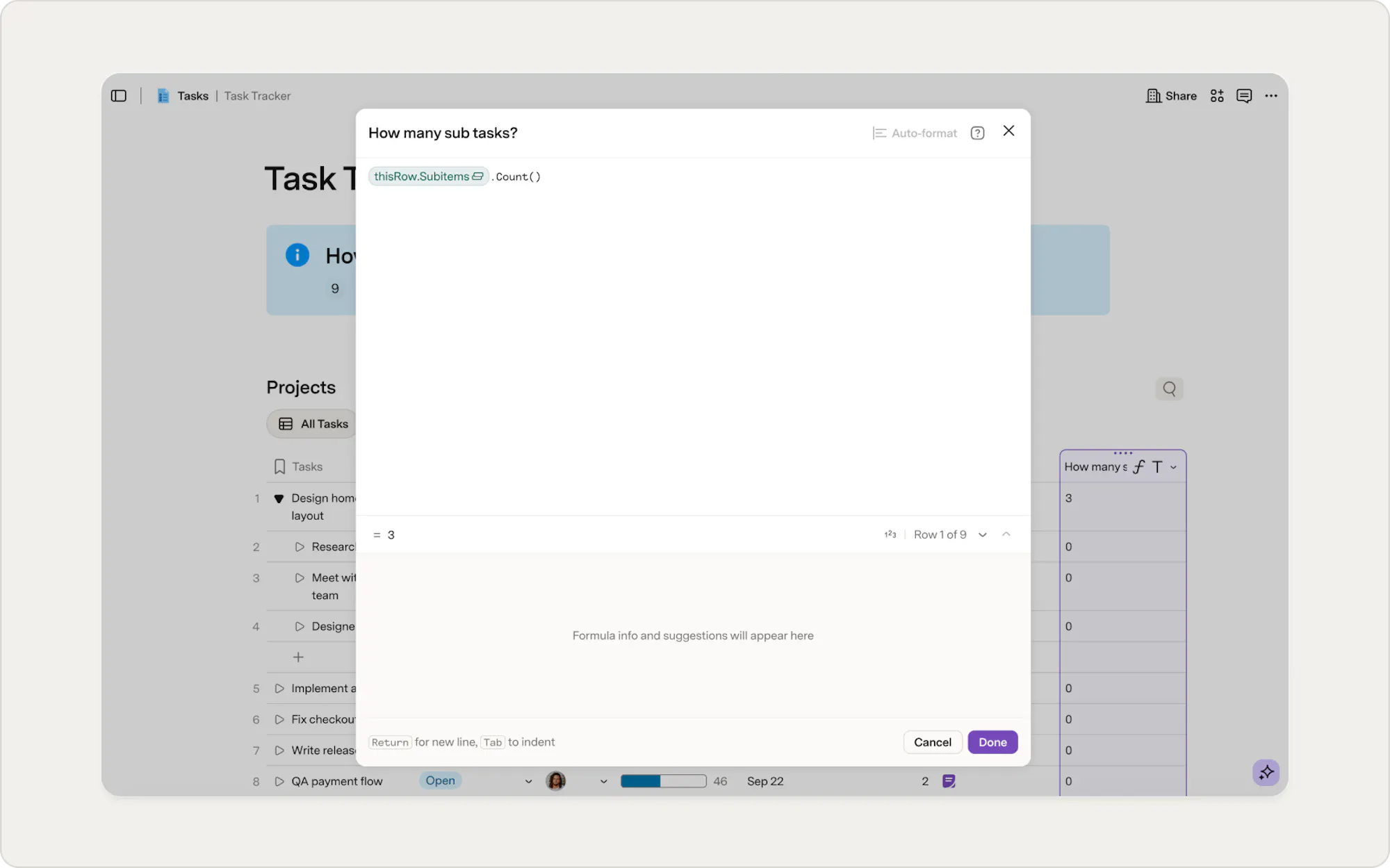
Average
Averages are useful when you’re trying to understand what’s typical across a set of items, like overall progress, effort, or scores, rather than focusing on any single row. In Quip:AVERAGE() In Superhuman Docs: Average() In spreadsheets, this usually meant averaging a range of cells. In Superhuman Docs, the calculation works the same way. The difference is deciding whether the result should describe the table as a whole or each row. Averaging values on the canvas with a formula If you prefer to write the calculation yourself, you can use a canvas formula. For example, this formula calculates the average progress across all projects:
Average([Projects].[Progress]) This returns a single number that reflects the average progress across the entire table and updates automatically as rows change.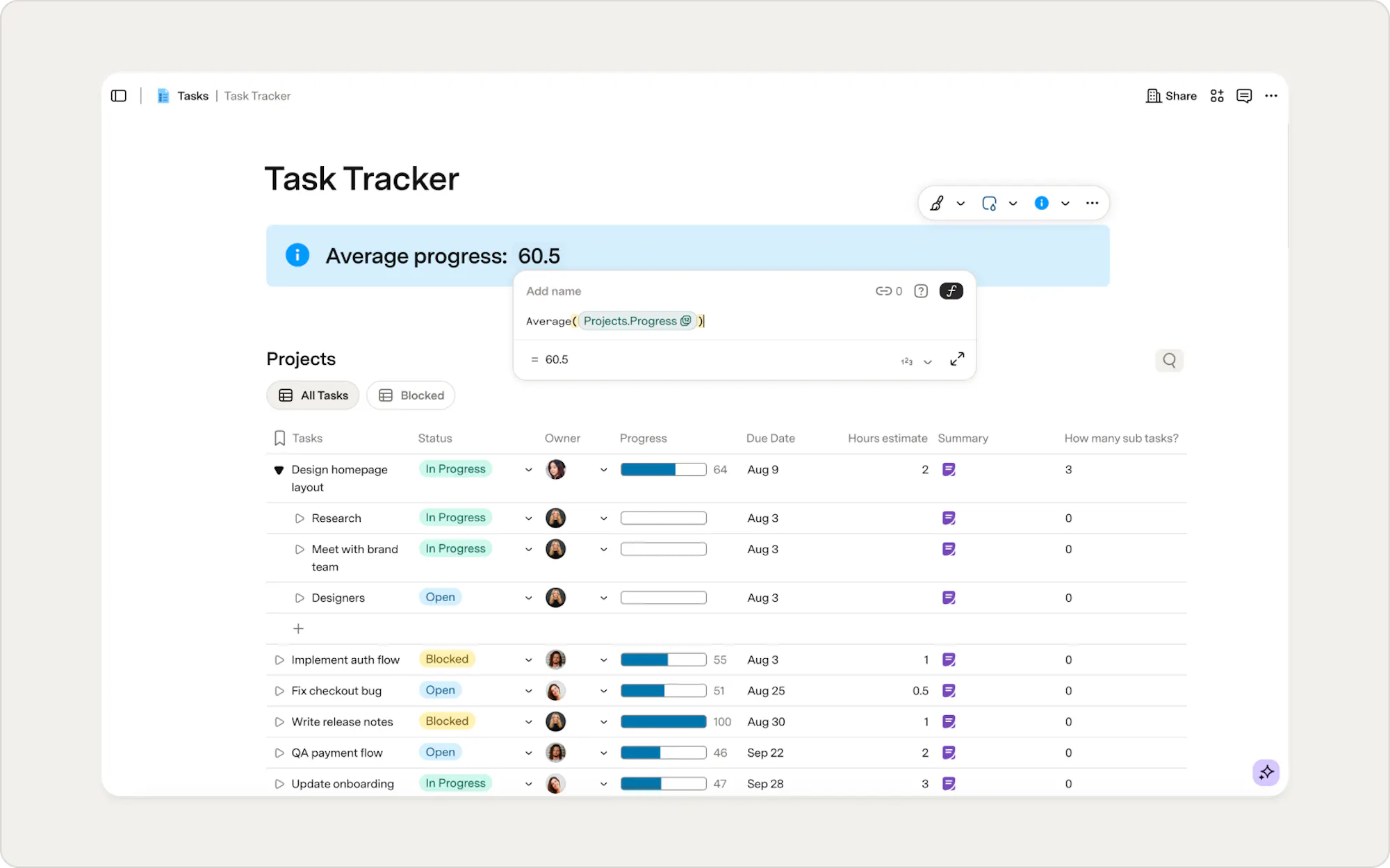
Averaging values within a row If each row needs its own average, such as averaging scores, ratings, or values tied to that row, use a column formula. In this case, you include the values directly in the
Average() function: Average([thisRow].[January Score],[thisRow].[February Score]) Here, Average() wraps those values because you're combining multiple inputs from the current row. Superhuman Docs applies this same formula to every row in the column, and each row calculates its own average based on its own values. 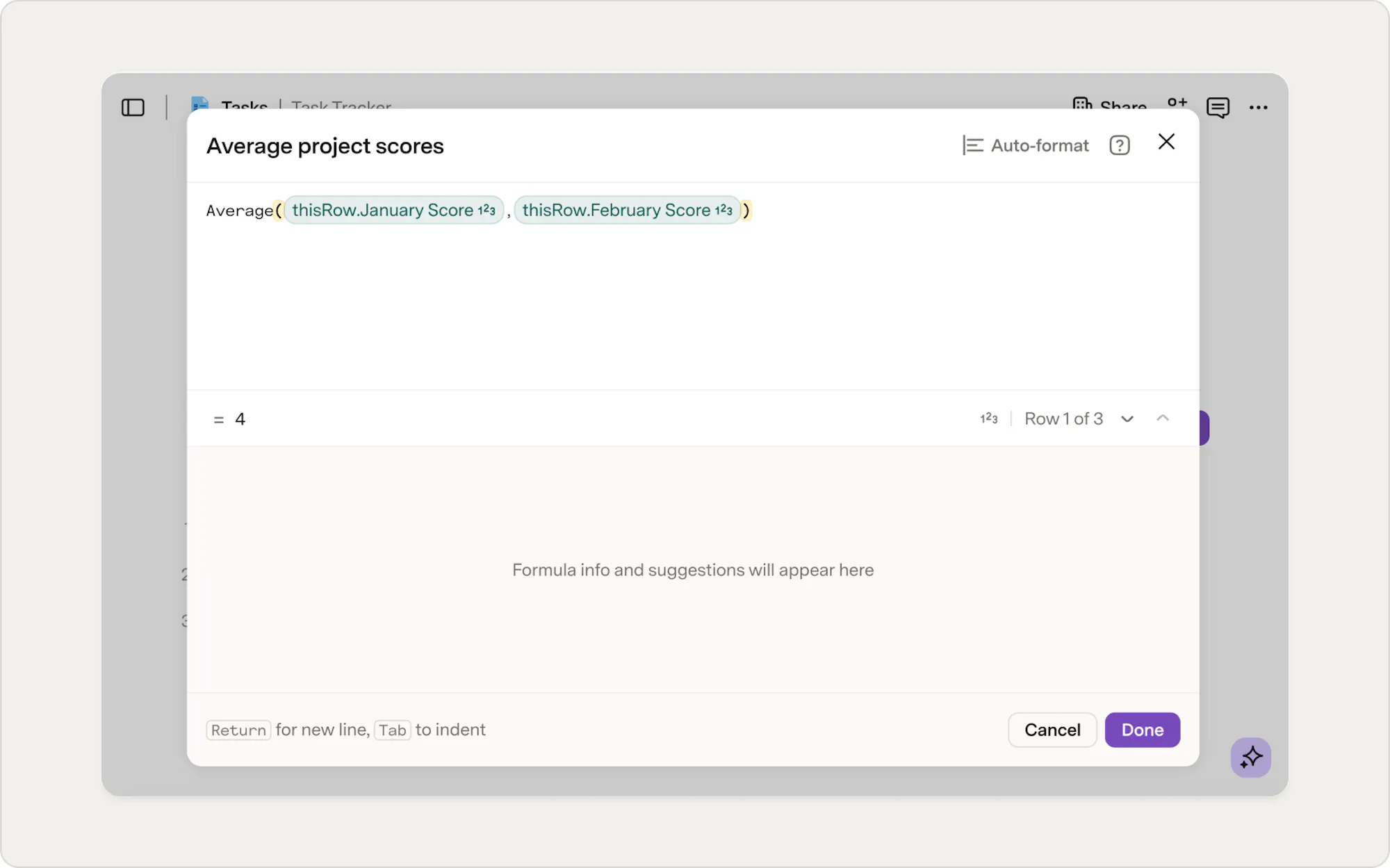
Conditionals
Some values shouldn't be static. They should change depending on what's happening in your doc. For example:- Total budget for projects that are "In Progress."
- Number of tasks that are "Blocked."
- Average score for completed work only.
SUMIF()SUMIFS()COUNTIF()COUNTIFS()
Start with summarize table for canvas values
In Superhuman Docs, conditional aggregations that you would like to surface on your canvas are often easiest with summarize table. It allows you to apply filters directly in the interface, narrow the rows first, and then choose how to calculate them all without writing a formula.How to use summarize table for conditional totals on the canvas
- On the canvas, type “/summarize” and choose Summarize table.
- Choose the table and the column.
- Select your summary type (sum, count, average, etc.).
- Choose more options to apply filters to narrow it down.
- When finished, click back onto your canvas.
Sum-If
You’ve probably used Sum-If or Sum-Ifs to add up values only when certain conditions are met. In Quip:SUMIF(), SUMIFS() In Superhuman Docs: Filter().Sum() In spreadsheets, this usually meant writing a formula that compared one or more ranges against criteria and summed the matching cells. In Superhuman Docs, the idea is the same, but it’s expressed a little differently. Instead of matching ranges, you first filter the rows you care about, then sum the results. The conditions apply at the row level, not across cell ranges. Summing filtered values on the canvas with a formula If you would like to write a canvas formula, this example adds up the budget for projects that are in progress:
[Projects].Filter([Status]="In Progress").[Budget].Sum() The formula returns a single value: the total budget for all projects with status "In Progress."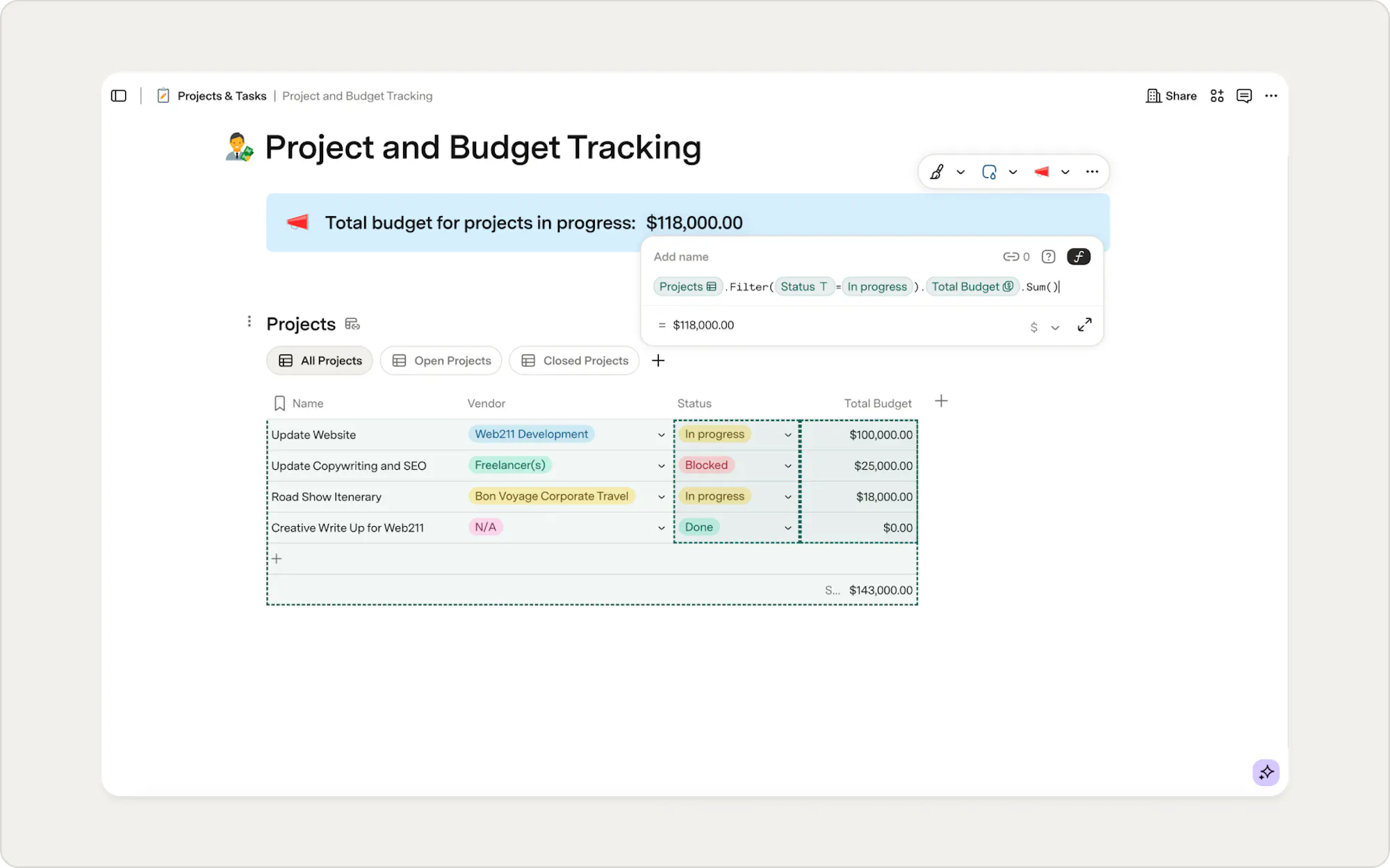
[thisRow.Subitems].Filter([Status] = "Complete").[Budget].Sum()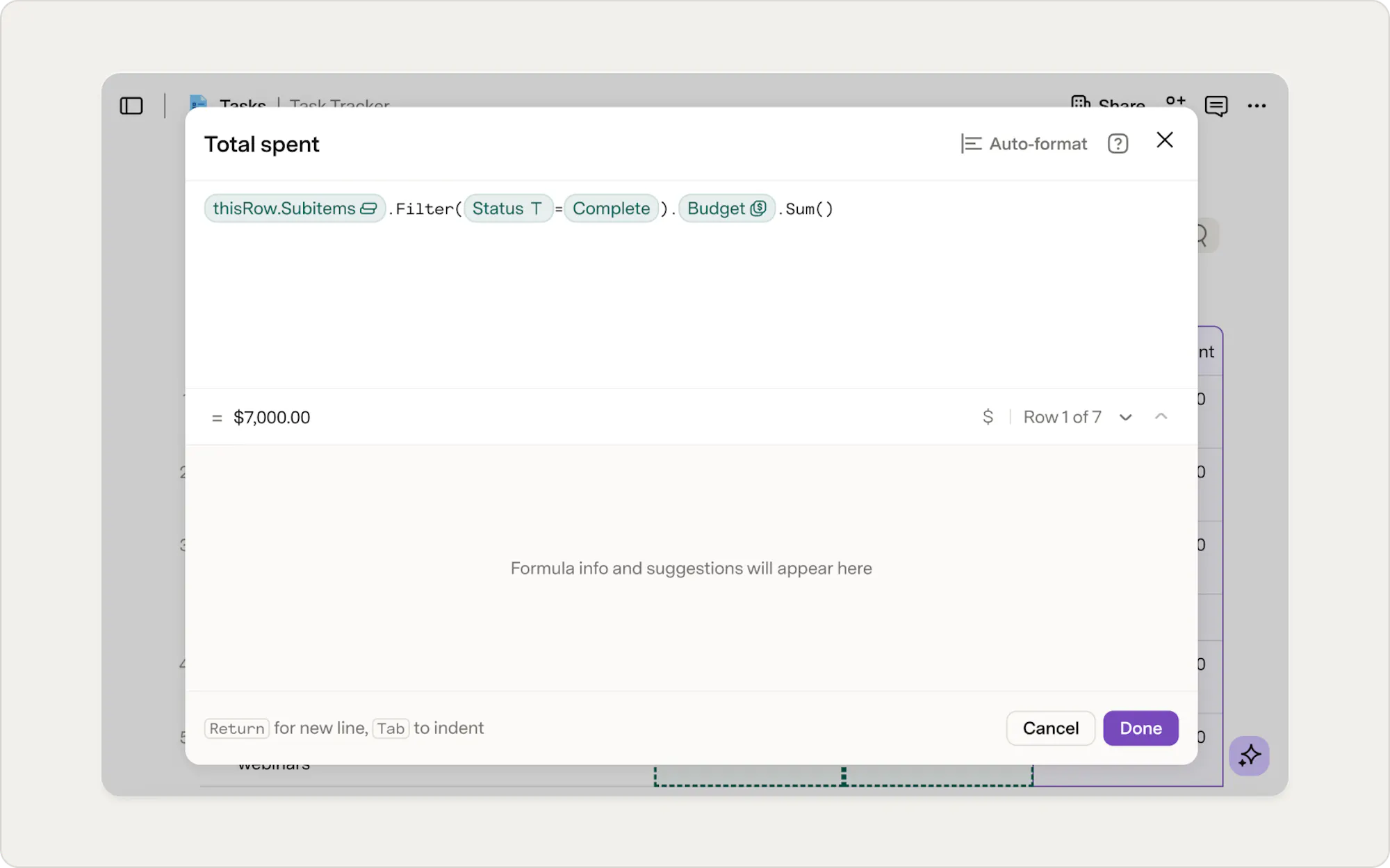
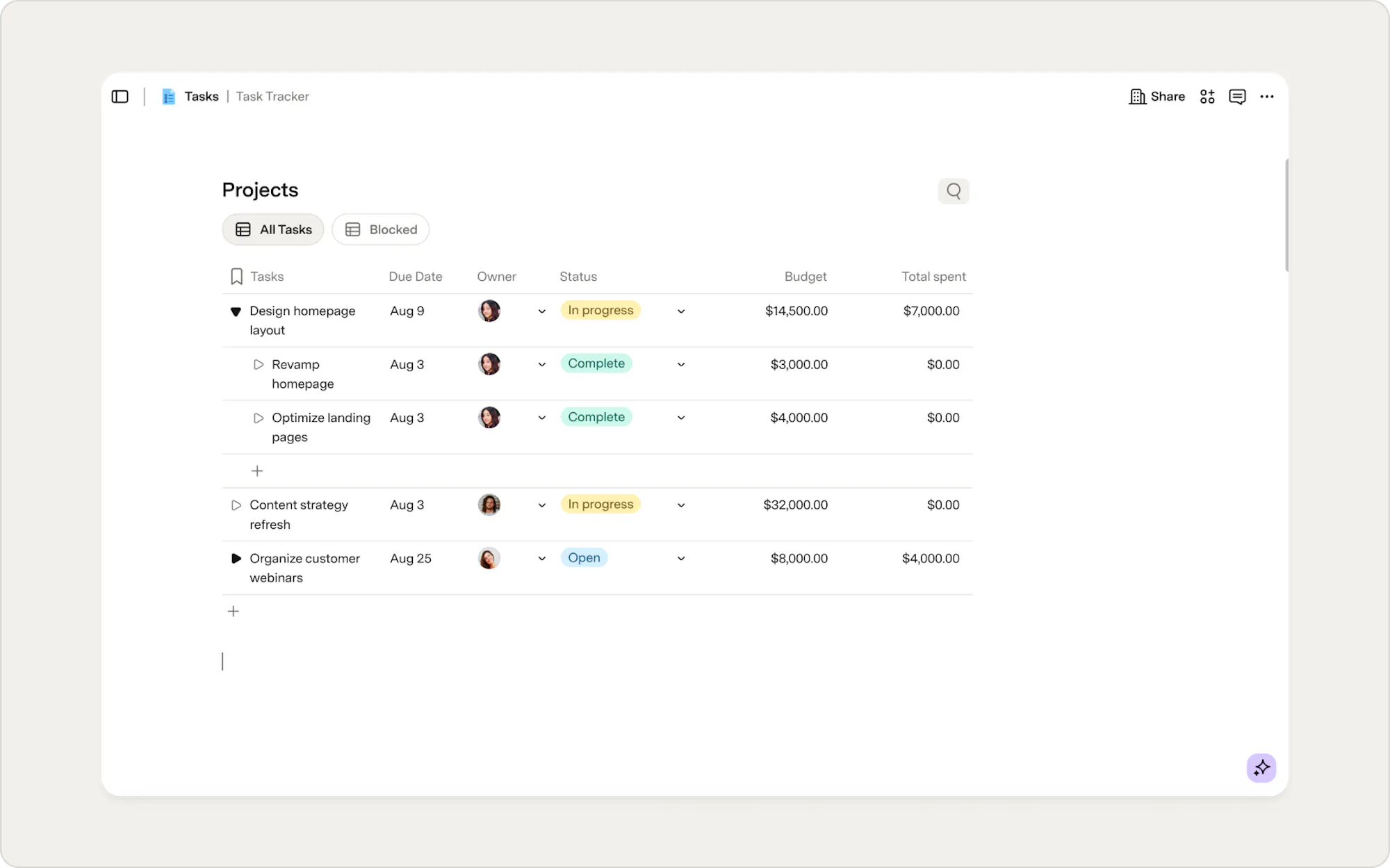
thisRow ensures the same logic applies across the table, while each row calculates its own total based on its related records.Count-If
Once you know how to count rows, the next question is usually which rows to include. That’s where Count-If comes in. In Quip:COUNTIF(), COUNTIFS() In Superhuman Docs: Filter().Count() CountIf shows up whenever you’re counting items that meet one or more conditions, like blocked tasks, projects owned by a specific person, or anything filtered by status or category. Counting filtered rows on the canvas with a formula If you prefer to write the formula directly, you can filter the table and then count the results. For example, the formula below counts blocked projects owned by the current user:
[Projects].Filter([Status] = "Blocked" AND [DRI] = User()).Count() The filter narrows the table to only the rows you care about, and then Count() returns the number of remaining projects blocked by the current user. 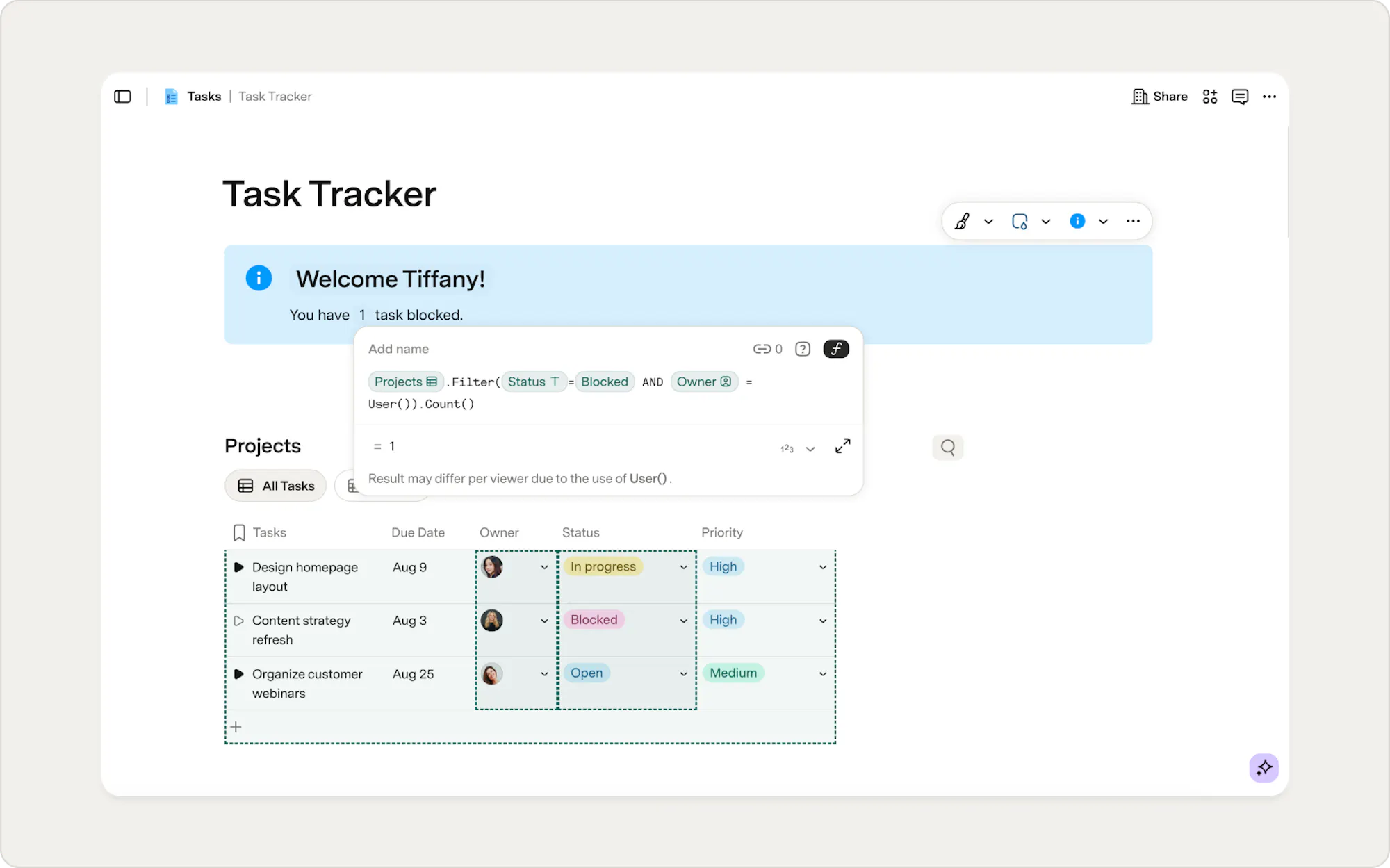
Counting related items per row with a column formula Sometimes the count belongs in each row rather than on the canvas. In this example, it counts how many blocked subtasks belong to each project:
[thisRow].[subitems].Filter([Status] = "Blocked").Count() This will return a per-row count of blocked subtasks and update automatically as related items change.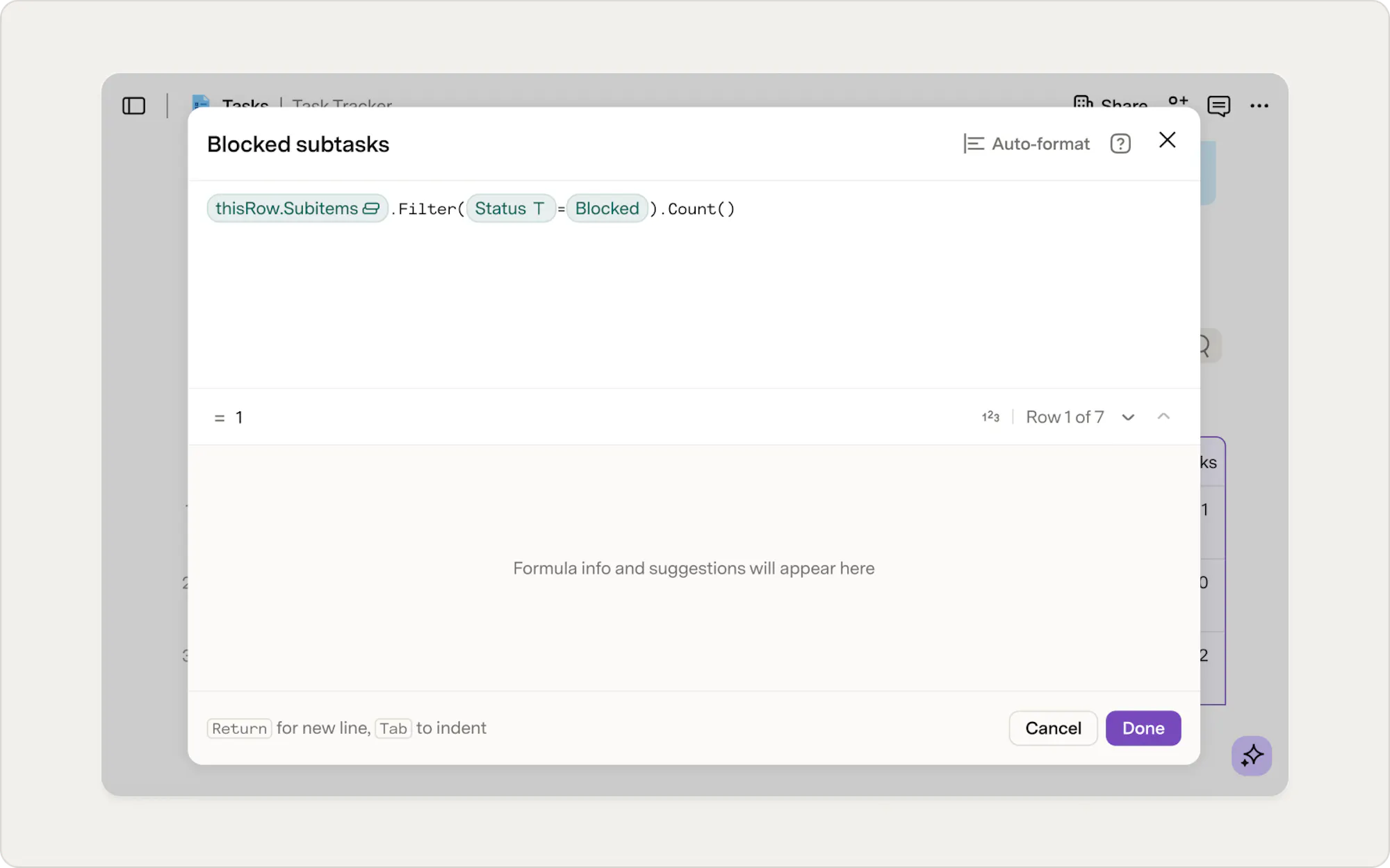
If
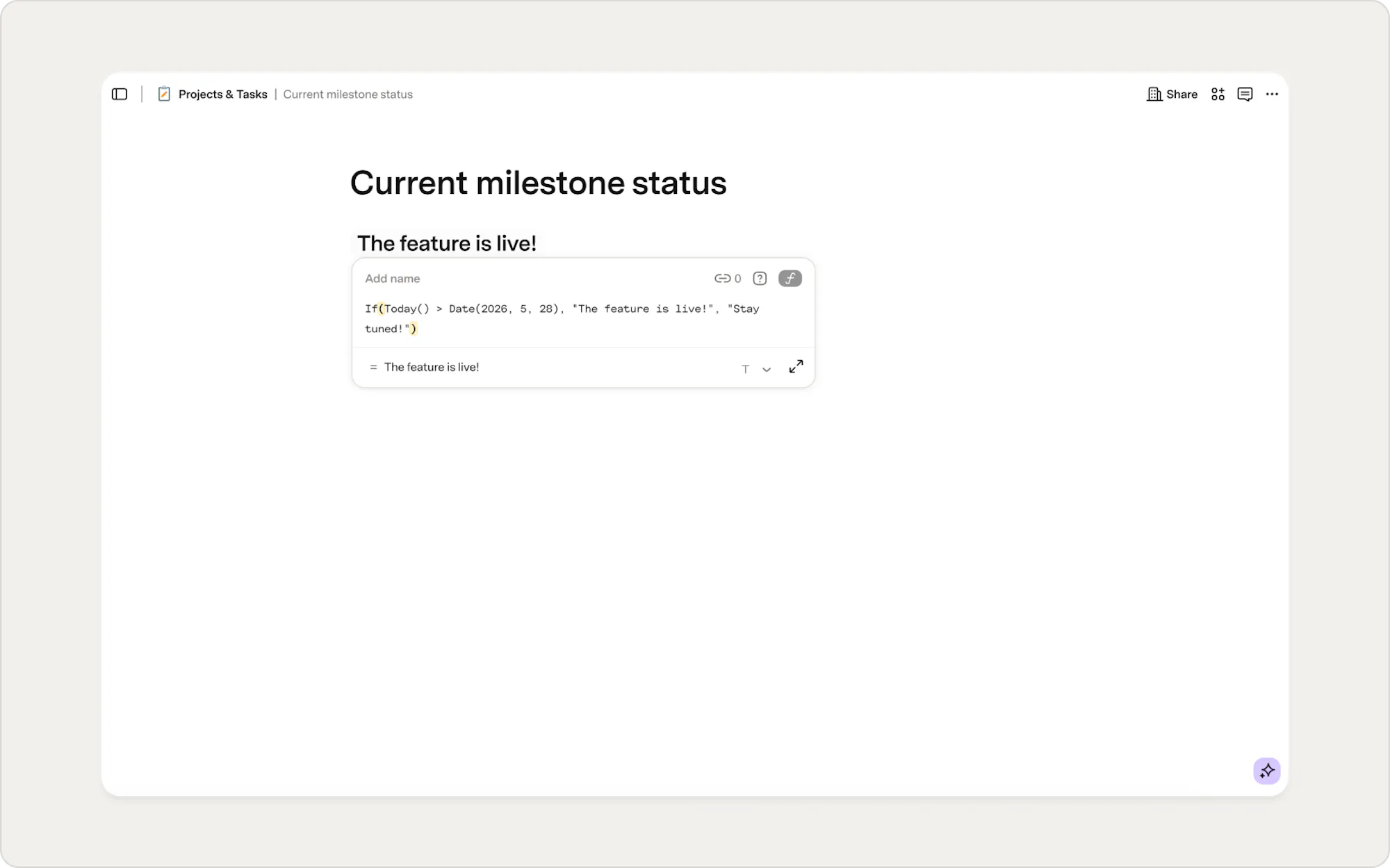
If lets you return different results depending on whether a condition is true or false. In Quip:IF() In Superhuman Docs: If() In Quip, this often looked like checking a cell range or returning one value for another. The idea is the same in Superhuman Docs: if a condition is true, return one value; otherwise, return another. What’s different is that conditions are usually written in terms of row data, not cell references. Using an If() formula on the canvas
If(Today() > Date(2026, 5, 28), "The feature is live!", "Stay tuned!") This formula compares today’s date to May 28, 2026.- If today’s date is after May 28, 2026, the formula returns “The feature is live!”
- If today’s date is on or before May 28, 2026, the formula returns “Stay tuned!”
If([Due Date] < Today(), "Overdue", "On track")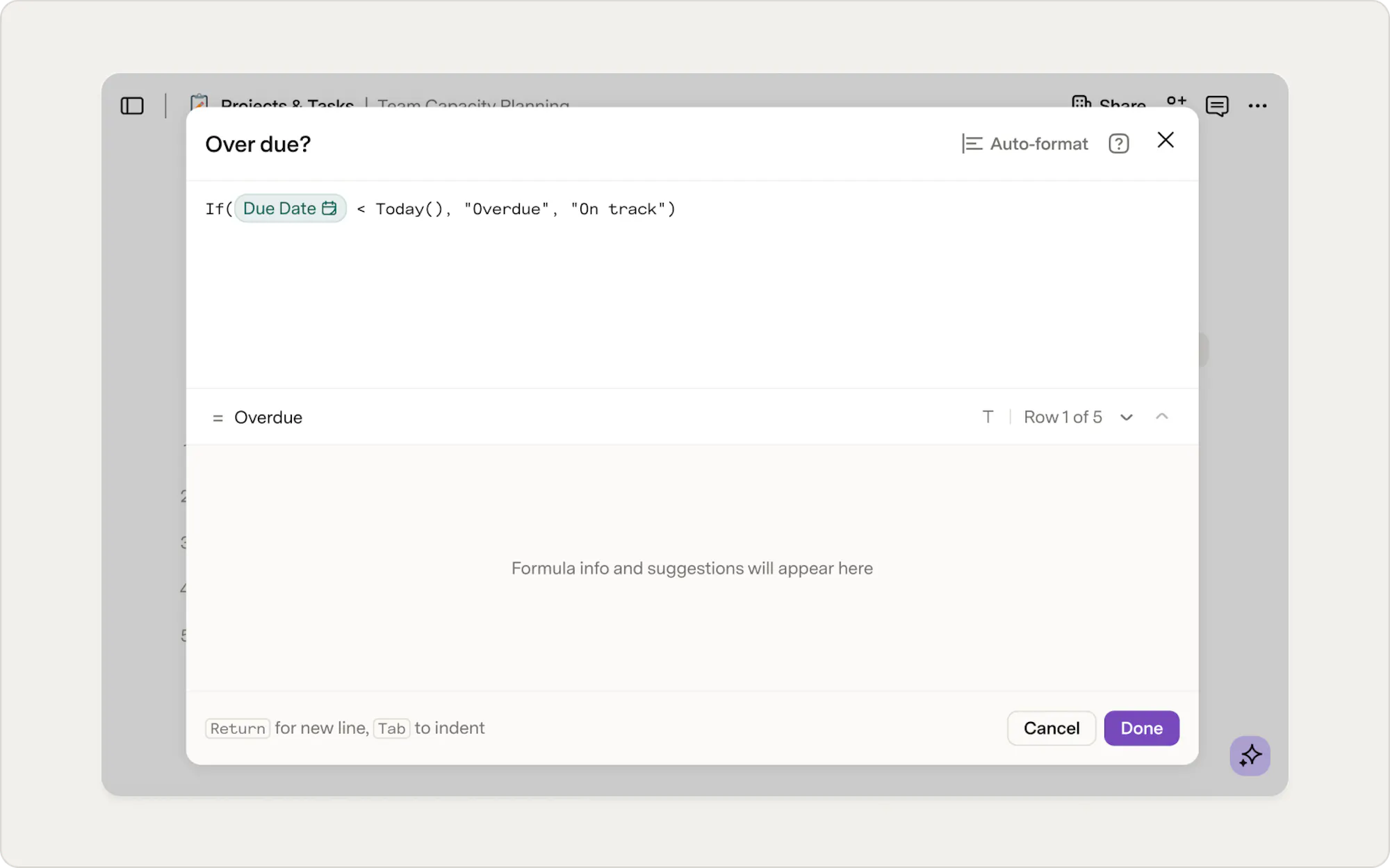
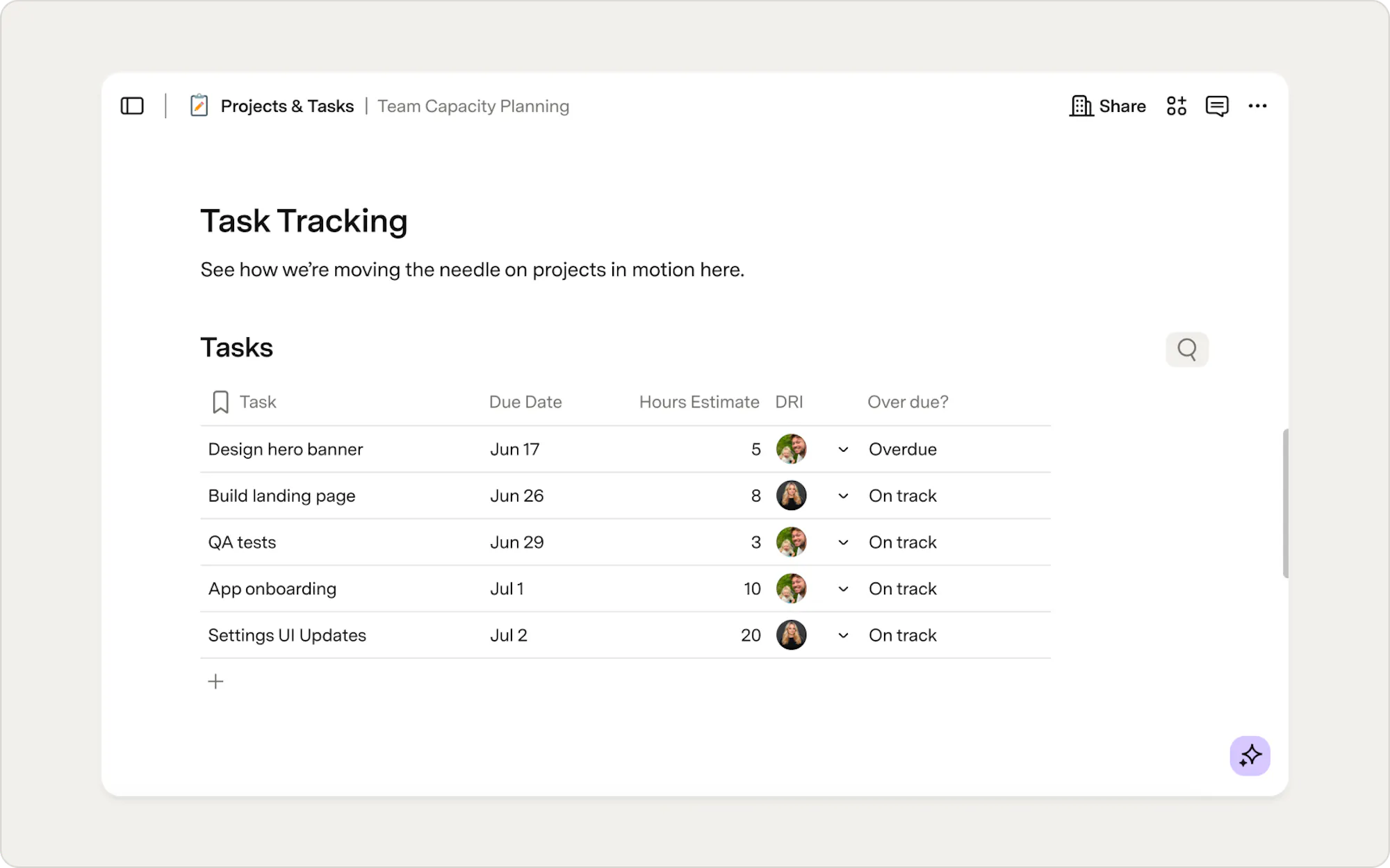
- Rows with a due date in the past return "Overdue."
- Rows with a due date today or in the future return "On track."
When you have more than two possible outcomes
When you have multiple conditions, If formulas can get long and hard to follow. That’s where SwitchIf comes in. Instead of nesting multiple If statements, SwitchIf lets you list conditions in order and returns the first matching result.
Lookups
Lookups are used when you want to pull information from another source, such as finding a project name from an ID or displaying details from a reference table. In Quip:VLOOKUP() In Superhuman Docs: Create a relation In Superhuman Docs, you usually don’t need a lookup formula. Instead of matching ranges, you can create a relation between tables. Once that structure exists, you can reference related fields directly or roll them up using built-in options. Let's use a simple example. You have:- A Tasks table
- A Projects table
How to create a relation between two tables
In our Tasks and Project example, to assign each task to a project:- Open the Tasks table. This table lists each row as a task.
- Click the + button on the right side of the table to add a new column.
- From the list of column types, choose Table.
- Select the Projects table. This creates a relation column.
- What happens next:
- A new column appears in the Tasks table where you can choose a project for each task.
- At the same time, Superhuman Docs adds a column to the Projects table that shows all related tasks for each project.
Text
Text formulas are usually used to combine values, format text, or generate labels. In spreadsheets, this often meant adding helper columns just to format text for display. In Superhuman Docs, you have more flexible options.Concatenate
Concatenate joins multiple pieces of text into a single string. In Quip:CONCATENATE() In Superhuman Docs: Concatenate()Compose (a Superhuman Docs-native alternative to concatenate)
In Quip, combining text often meant creating helper columns using concatenate or string formulas to format or display information. In Superhuman Docs, many of those use cases are better handled with compose. Compose lets you build dynamic text directly inside a column without writing a long formula. You can mix static text, column references, and calculated values, all in one place. Common examples include:- Status updates
- Email or notification content
- Descriptions generated from row data
How Compose works
With compose, you define what each cell should contain, and Superhuman Docs fills it in for every row. Inside the compose editor, you can:- Reference column values using @
- Insert formulas using =
- Format text using the editor’s formatting tools
Want to dive deeper? Check out how to build dynamic text columns with compose for a step-by-step walkthrough.
How to use concatenate on the canvas
On the canvas, you can use text formulas to generate a personalized message:
Concatenate("Welcome"," ", Split(User().ToText(), " ").First(),"!") This evaluates once and displays a single piece of text based on the viewers of your doc.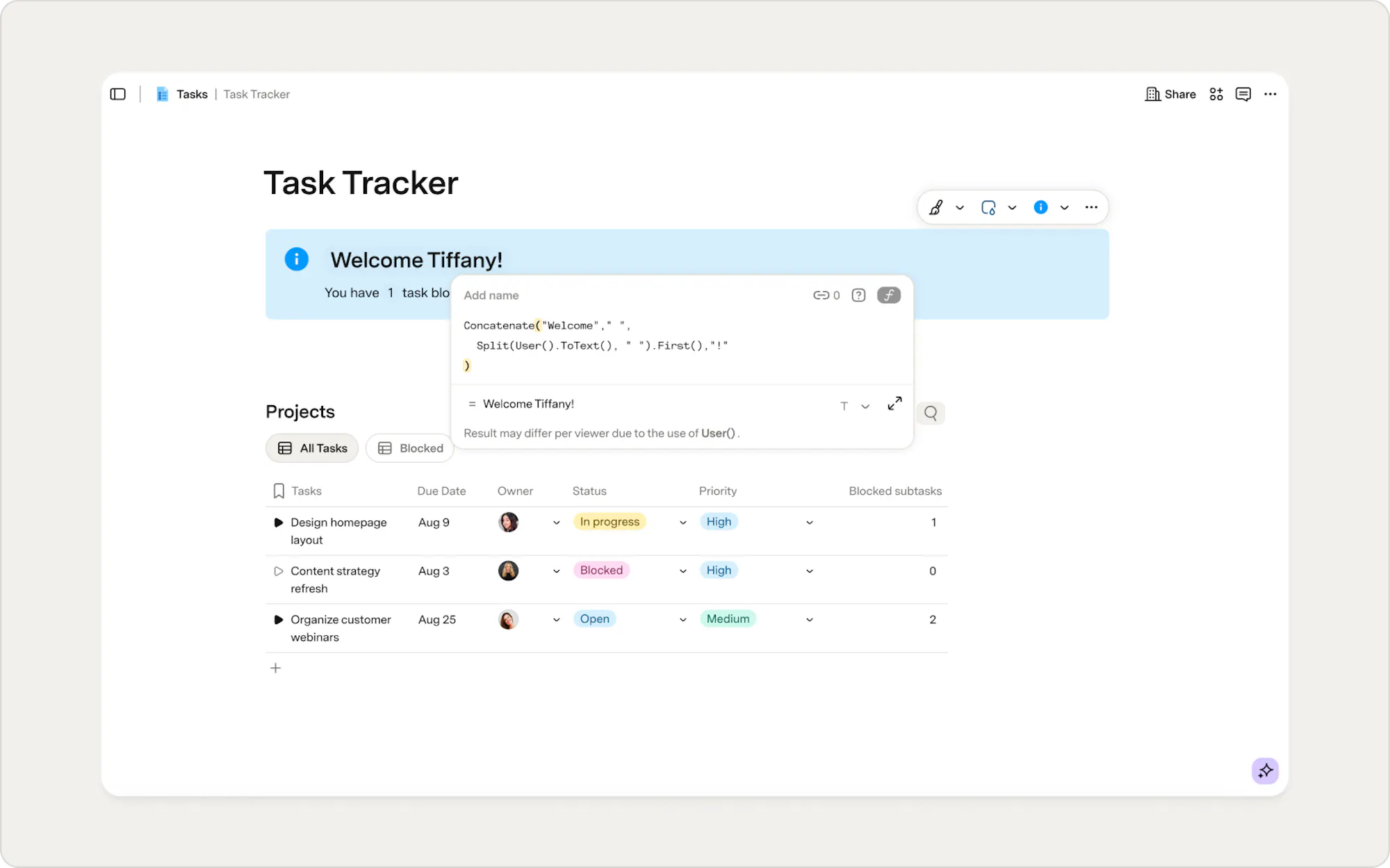
How to use concatenate in a table
Concatenate works very much the same way as it does in spreadsheets. When the text belongs to each row, use a column formula. For example, to combine a first and last name:
Concatenate([FirstName]," ", [LastName]) 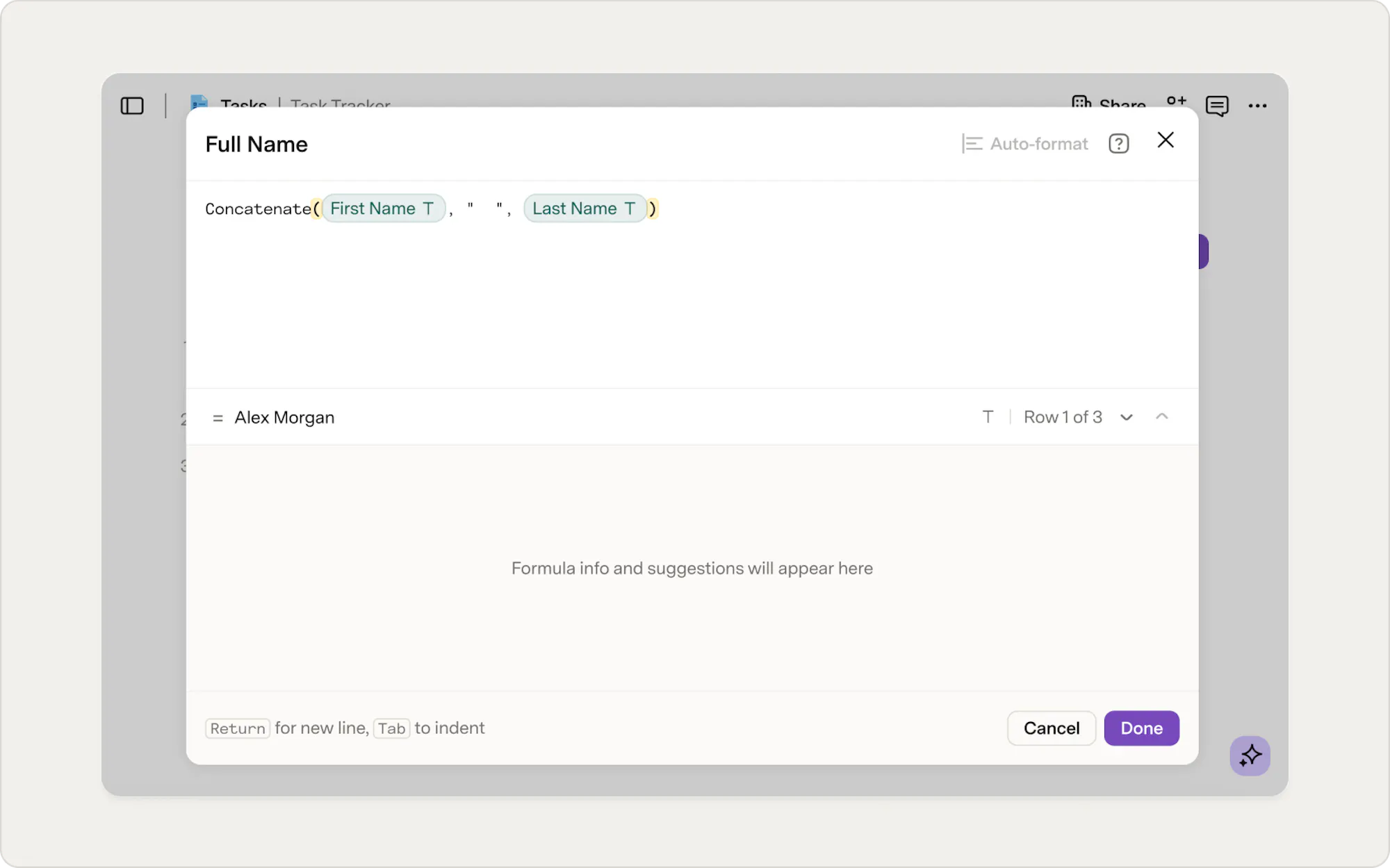
Concatenate([Project], " is ", [Status], " and due on ", [Due date], ".")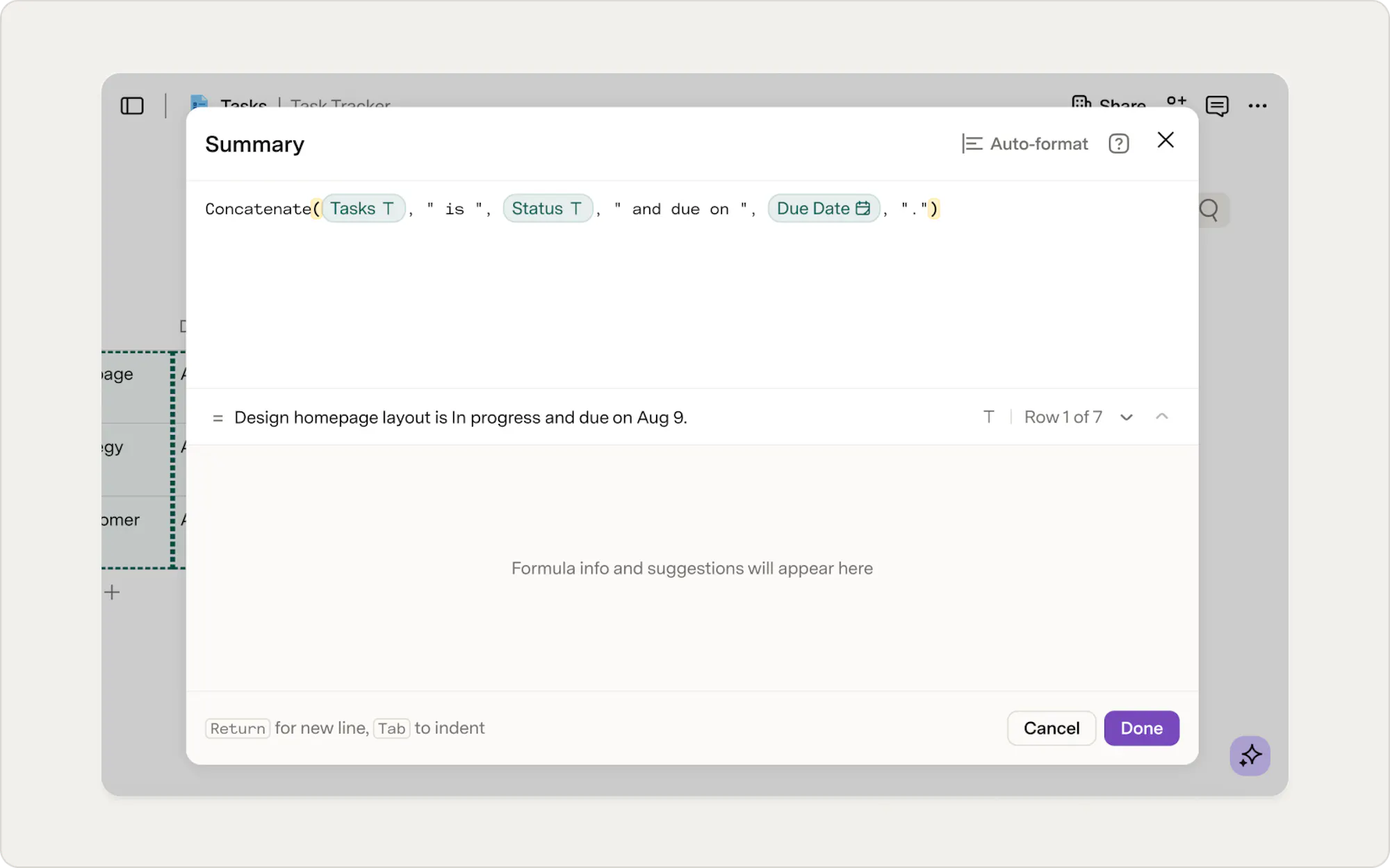
Now what?
You don’t need to master all of this at once. Most teams build quite a lot in Superhuman Docs before writing many formulas. When you do need them, the formula language is there to help you go further. To keep learning, check out:- Intro to Superhuman Docs' formula syntax
- Writing a formula in Superhuman Docs
- Formulas 101: A comprehensive introduction to working with data in Superhuman Docs
Was this helpful?
YesNo