



8 min read
Send messages from Superhuman Docs
Connect Superhuman Docs to Gmail to streamline communication.

What you’ll learn:
- How to connect the Gmail Pack and send meeting notes by email
- How to automate messages so they send themselves

What you’ll use:
- Gmail Pack
- Buttons
- Automations
Send notes with the Gmail Pack
If your team tracks meeting notes in a table, you can create a button that drafts or sends a follow-up email directly from each row. No copy-pasting, no switching tabs. Superhuman Docs connects to both Gmail and Outlook. This example uses Gmail, but the setup is the same for either.
Adding the Gmail Pack
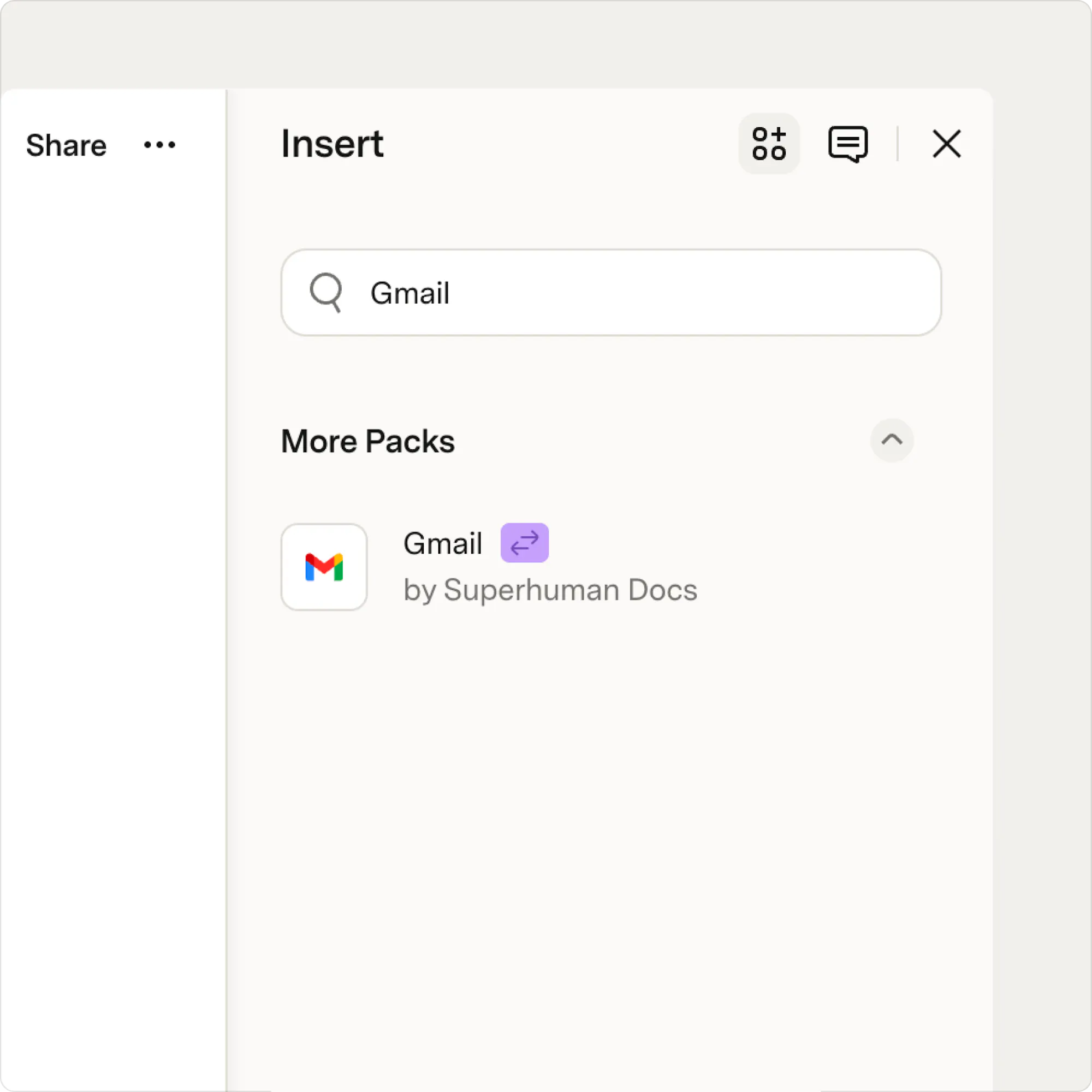
- Click Insert in the top right of your screen and choose Packs.
- Search for and select the Gmail Pack.
- Click Add to doc.
Set up your email meeting notes table
Now that you have the Gmail Pack added to your doc, you can make a button to send an email or create a draft. Superhuman Docs has a built-in template that makes this easy to get started.- Type /email meeting notes on the canvas.
- Select the Email meeting notes template.
- You will be prompted to Sign in with Gmail.
- Click Connect an account and select the Gmail account you want to use.
- Right click the Draft email button and and choose Connect an account.
How it works behind the scenes
The draft pulls the message content from the Message column and addresses it to the people listed in the Attendees column. You can adjust these settings by right-clicking the Draft email button and opening the button settings.- Right-click the button and open button settings.
- Under On Click, select Packs → Gmail → Send email.
- Fill in the fields:
- To →
Attendees.Email address(use your own email to test first) - Subject →
Email subject - Content →
Message - Results Column →
Email result
- To →
- Update the button label to something clear, like Send email.
Automate your notes
Once your button is working, you can automate it so messages go out on a schedule or whenever something changes in your table, without anyone having to click.- Type /Automation on the canvas and choose Automation.
- Click + Add Rule and give it a clear name.
- Under When, choose a Time-based trigger (for scheduled sends) or a Row changed trigger (for event-based sends).
- Under Then, choose Push buttons and select the button column you set up.
- Toggle the rule On.
Now what?
There are an infinite (not really, but close) number of ways you can connect Superhuman Docs to your communication workflows, and the Gmail Packs is just the beginning. Think about the repetitive communication tasks you have... Superhuman Docs can probably help. Think about the updates your team sends manually every week and ask yourself whether a button or automation could handle it. Check out these guides for the next steps in your message sending journey:Was this helpful?
YesNo